Tutorial interactivo
Close, Exit, and Delete
Learn how to close, remove, or permanently delete notebooks and sections in OneNote safely
-
Aprender haciendo
-
LMS listo
-
Obtenga certificados


Pruebe este curso con una prueba gratuita


Close a Notebook
When you're done working in a notebook, it's a good idea to close it.

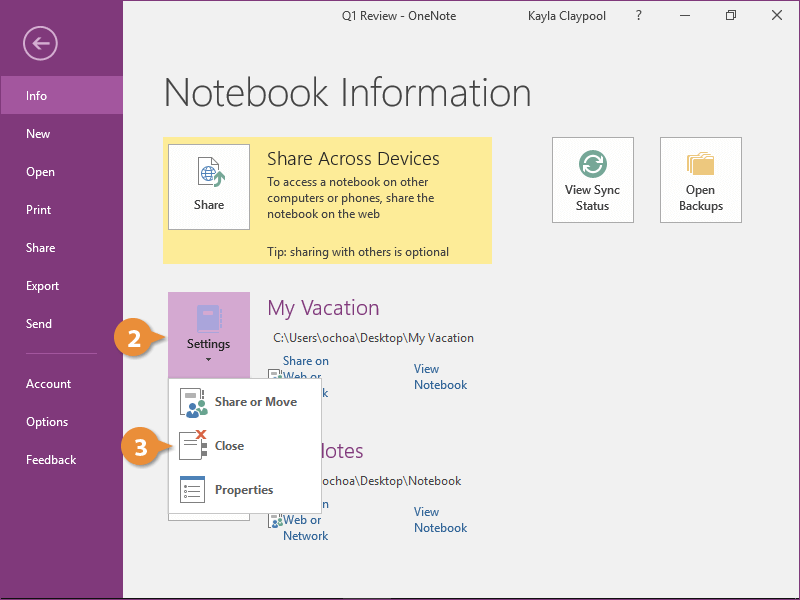
And just that notebook closes.
Exit OneNote
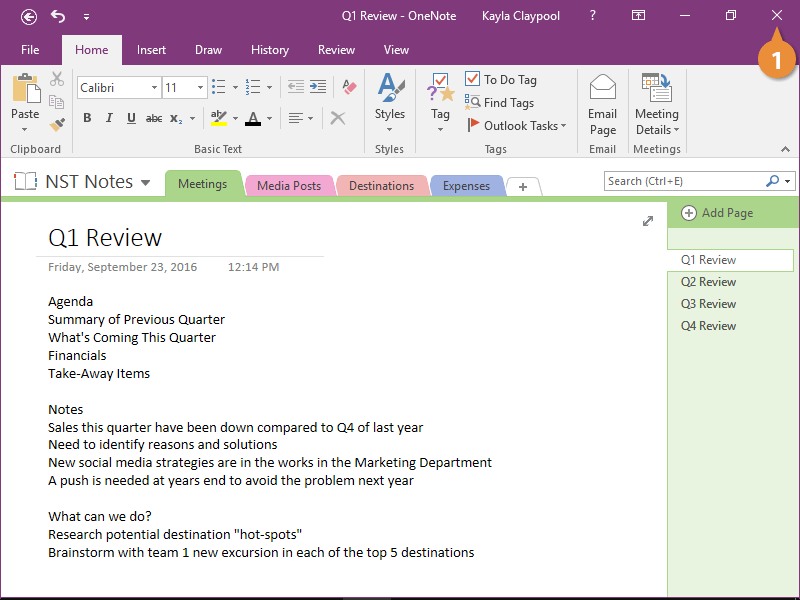
The entire program is closed and you're brought back to the desktop.
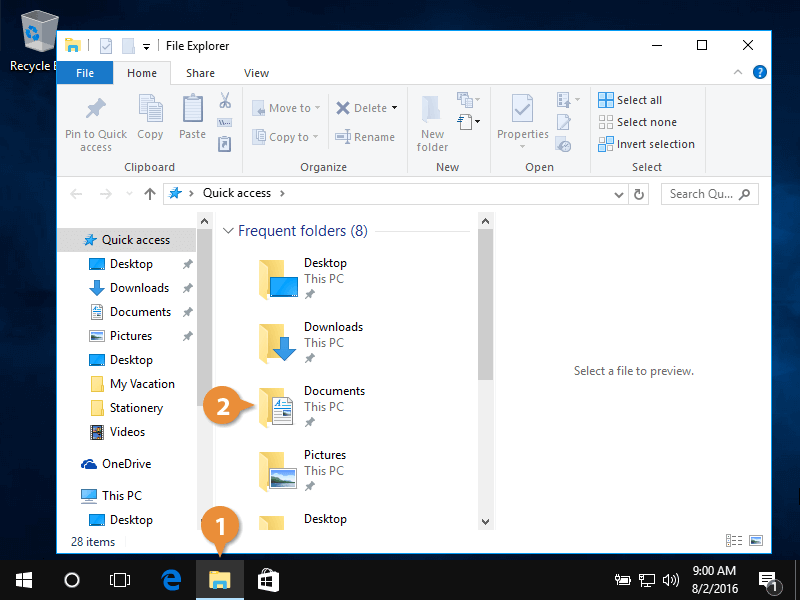
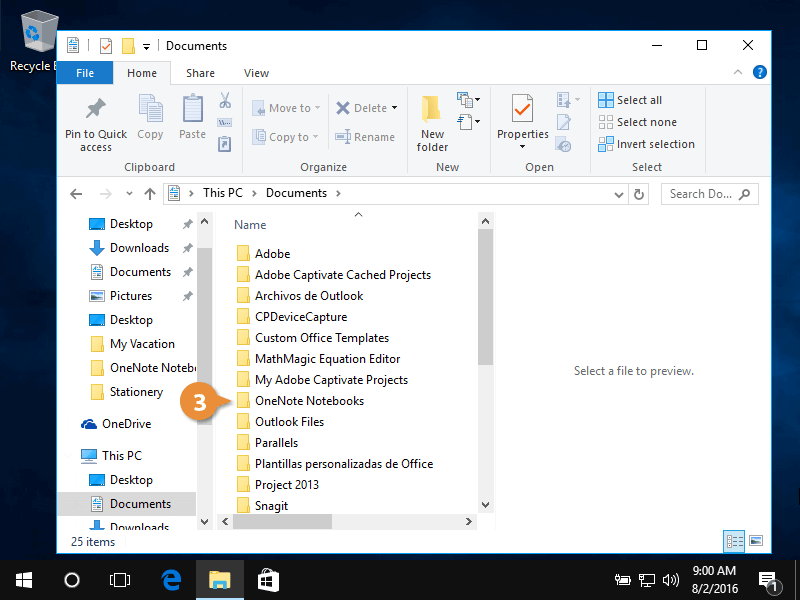
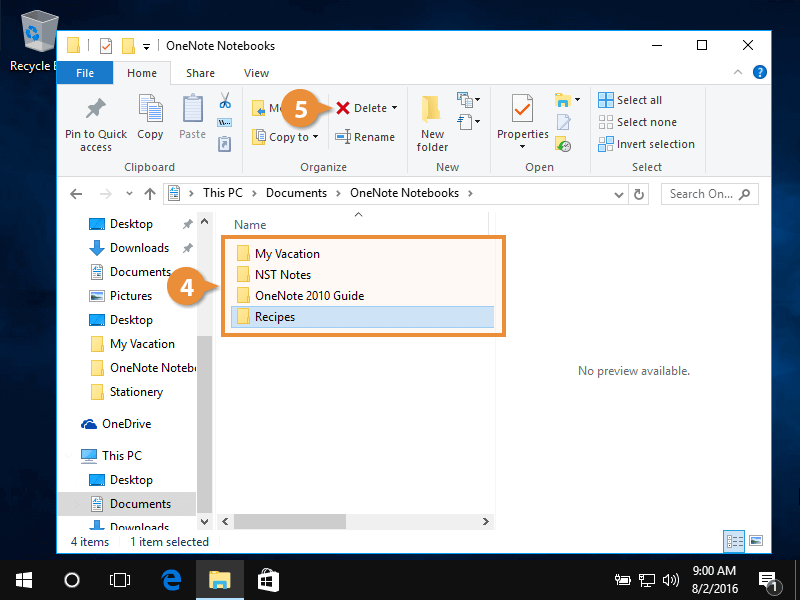
Delete a Notebook
If you're done with a notebook and know you won't ever need it again, delete it.