

Interactive Tutorial
How to Format a Field in Access
Customize text and data appearance by applying field formatting in Microsoft Access
-
Learn by Doing
-
LMS Ready
-
Earn Certificates


Try this Course with a Free Trial


You can change how a text field displays its information by modifying its number property. Unfortunately, unlike number fields, text fields don’t have any ready-made settings and must be formatted manually.
- In Design View, click the field you want to format.
- Click the Format box.
- Enter the appropriate text formatting symbols.
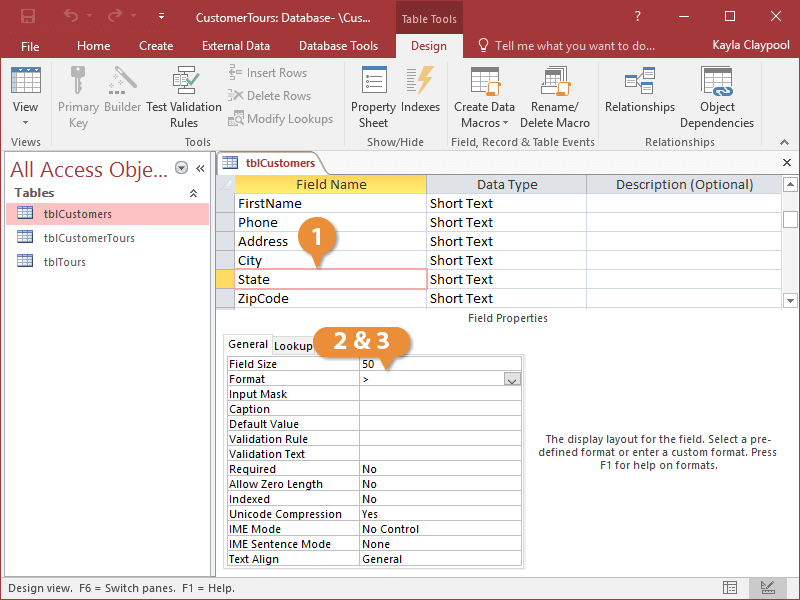
The Format property only changes how data is displayed on screen, not how the data is actually stored in the field.
| General and Text Formatting Symbols | ||||
|---|---|---|---|---|
| Character | Description | Text | Format | Display |
| ! | Aligns text from the right | Hello | ! | Hello |
| < | Lowercase | Hello | < | hello |
| > | Uppercase | Hello | > | HELLO |
| "ABC" | Always display quoted text | 4 | & “oz.” | 4 oz. |
| @ | Character is required | 5558000 | @@@-@@@@ | 555-8000 |
| * | Fill available space with next character | Alert | &*! | Alert!!!!!!!! |
| [color] | Displays value in color | Hello | [red] | Hello |